![meddicc-logo.svg]](https://meddicc.com/hubfs/website/images/vectors/meddicc-logo.svg)
Congratulations on completing your course! It's now time to show off your certificate and all that hard work!
Step 1: Navigate to Your Completed Program
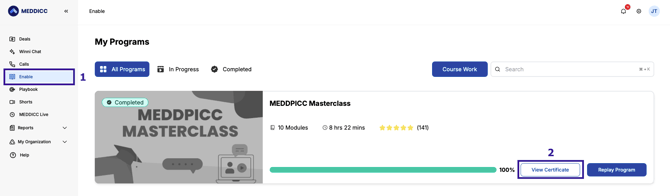
Go to Enable > My Programs in mOS. Locate the program you have completed (marked with a green Completed badge and 100% progress bar), then click "View Certificate."
Step 2: Access Your Certificate Page
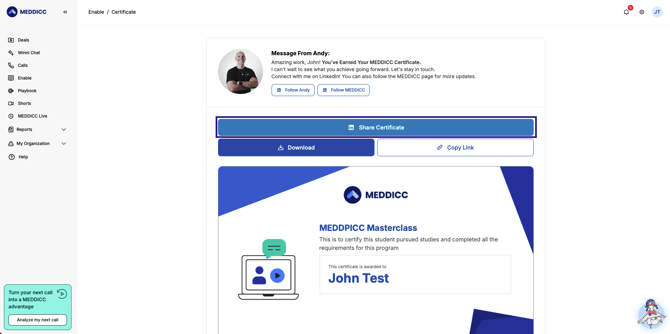
You'll land on your Certificate page, which includes a personal message from Andy, and three action options: Share Certificate, Download, and Copy Link.
Step 3: Share to LinkedIn
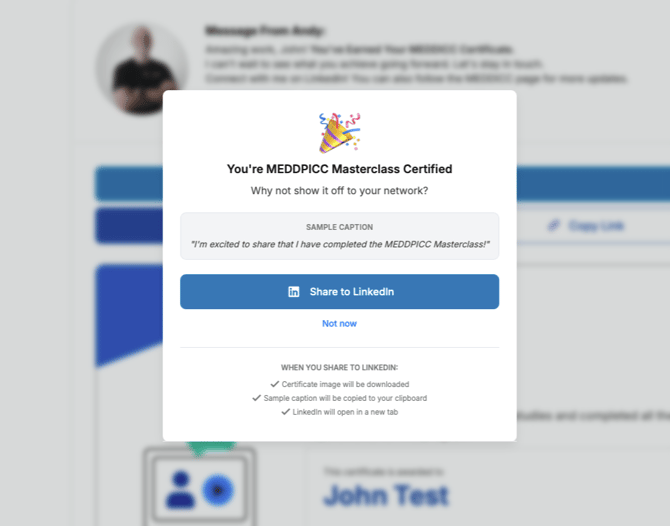
Click "Share Certificate." A modal will appear confirming your certification and providing a sample caption you can use for your post.
When you click "Share to LinkedIn", mOS will automatically:
✅ Download the certificate image to your computer
✅ Copy the sample caption to your clipboard
✅ Open LinkedIn in a new tab
Step 4: Create Your LinkedIn Post
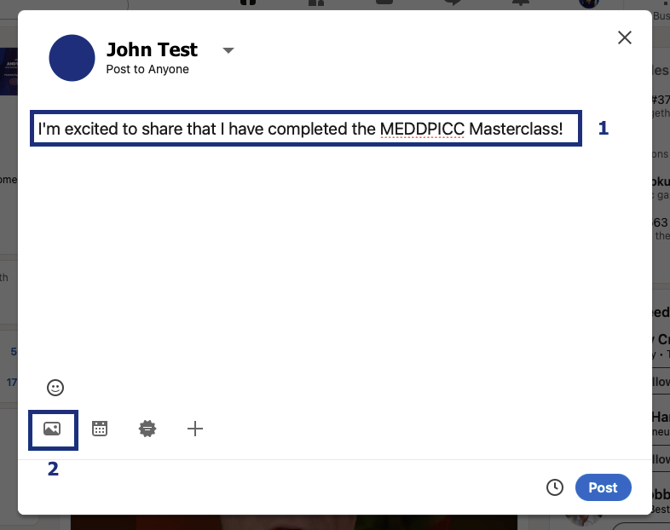
On LinkedIn, click "Photo" in the post editor, then select "Upload from computer."
Step 5: Select Your Certificate File
In your Downloads folder, locate the certificate file (e.g., MEDDICC Partner Program certificate.jpg) and click "Open."
Step 6: Add Your Caption and Post
Your sample caption is already copied to your clipboard. Paste it into the post body, edit as you like, and click "Post."
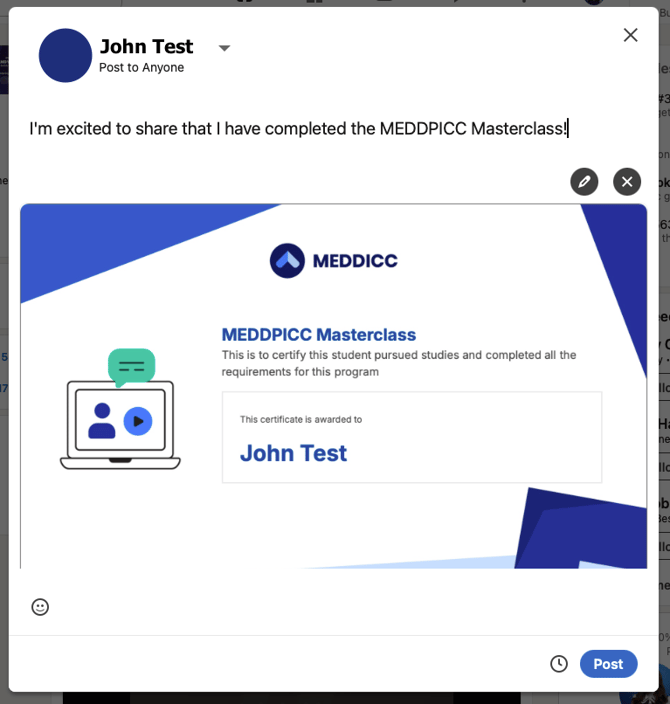
And voila! Your certificate can now proudly sit on your LinkedIn profile... right where it should be!
💡 Tip: You can also use "Download" or "Copy Link" from the Certificate page if you prefer to share the certificate differently. For example, adding the link to your LinkedIn profile's Licenses & Certifications section.
⚠️ Note: Make sure to check your Downloads folder if the file doesn't appear immediately. The certificate image is saved there automatically when you click "Share to LinkedIn."