![meddicc-logo.svg]](https://meddicc.com/hubfs/website/images/vectors/meddicc-logo.svg)
Calls joins your external sales calls, records them, and automatically extracts MEDDPICC qualification data from the conversation. It turns unstructured dialogue into structured insights, so you can focus on the conversation, not the notes.
What is Calls?
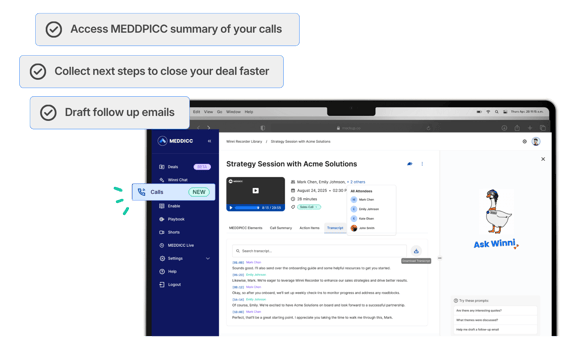
Winni Recorder is built into Calls, MEDDICC's call intelligence product. It records your sales calls on Zoom, Google Meet, and Microsoft Teams, then automatically produces:
- A MEDDPICC-structured breakdown of what was discussed
- A call summary with participants, challenges, objectives, and key points
- Action items and next steps identified from the conversation
- A full, searchable transcript with timestamps and speaker labels
- A follow-up email draft, ready to copy and send
All of this lives in your Calls Library, accessible any time after the call.
Getting Started
Calls is available to all mOS users (except accounts with contractual restrictions). No admin setup is required. Each user activates it individually.
Step 1: Connect your calendar
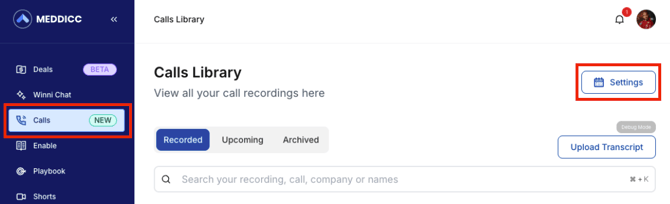
- Go to Calls then Settings in the right navigation.
- Select Connect Your Calendar.
- Follow the Google or Microsoft authorization flow.
- Once connected, Winni will automatically join scheduled external meetings.
💡 An external meeting is any scheduled call that includes at least one participant outside your company domain.
What Calls appears as in your meeting
Calls joins as a participant, not silently. How it appears depends on the platform:
- Google Meet: Winni appears as 'Meeting Notetaker'
- Microsoft Teams: Winni appears as 'Winni Call Recorder'
- Zoom: Winni appears as 'Meeting Notetaker'
⚠️ Winni may be placed in the waiting room when it joins. If you see it there, admit it as you would any other participant. If Winni is not admitted, it cannot record the call or capture any MEDDPICC data.
Supported Meeting Platforms
|
Platform |
Bot Name |
|
Zoom |
Meeting Notetaker |
|
Google Meet |
Meeting Notetaker |
|
Microsoft Teams |
Winni Call Recorder |
What Gets Captured
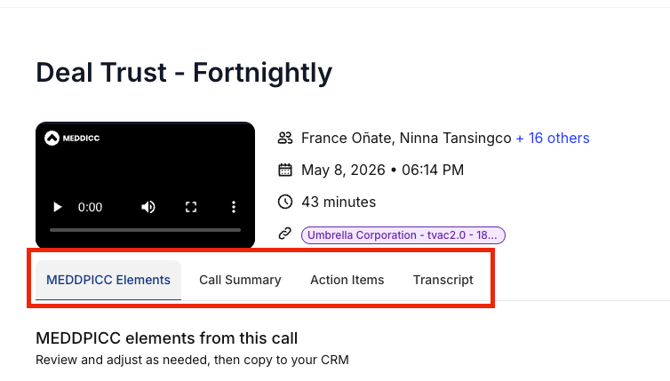
Every recorded call produces four tabs in the Calls Library:
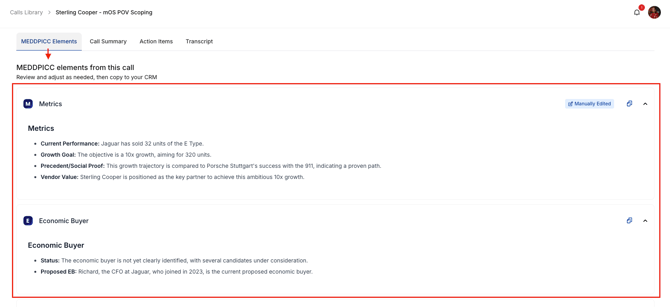
MEDDPICC Elements
Each MEDDPICC element is extracted and structured from the call. The tab shows identified stakeholders, key requirements, and gaps. If a MEDDPICC element wasn't discussed on the call, it's tagged as 'Not Identified' so nothing slips through.
Extraction is AI-assisted and confidence-based. Review and refine any element before using it operationally. You can edit, adjust, or reject any extracted insight.
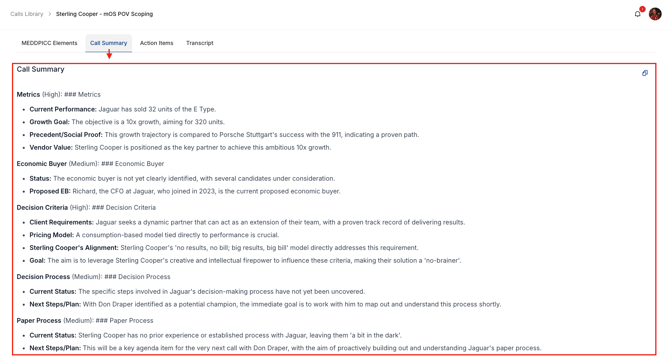
Call Summary
A structured summary including meeting title, participants, challenges and objectives, and key discussion points from the call.
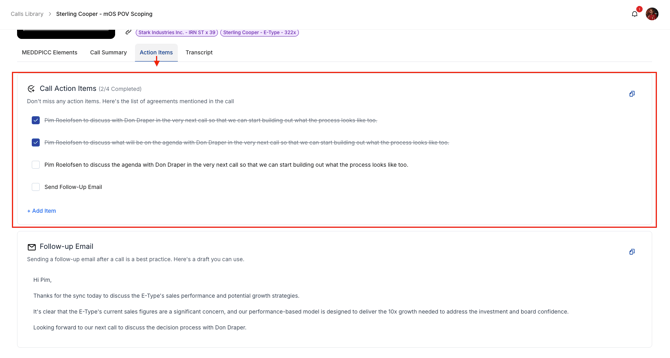
Action Items
A checklist of next steps and agreements identified from the conversation. Check items off as they're completed.
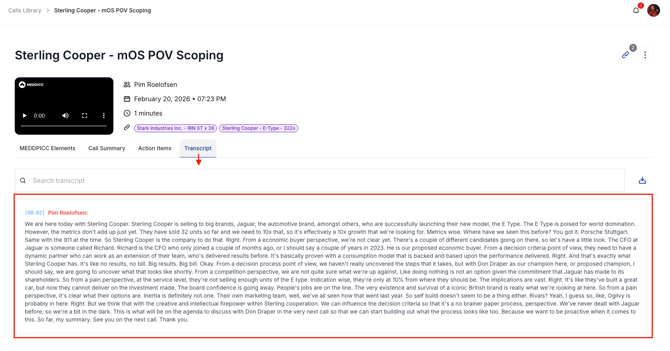
Transcript
A full, searchable transcript of the call with timestamps and speaker labels. You can download the transcript directly from this tab.
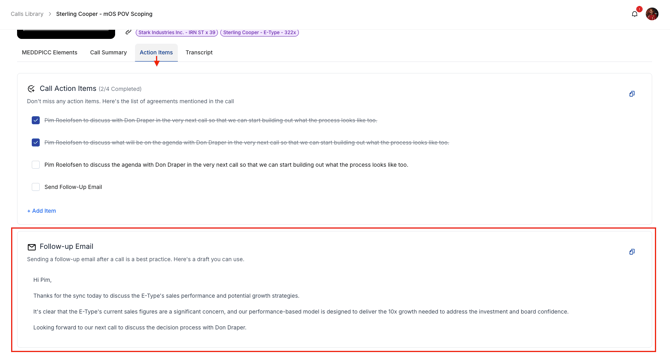
Follow-up email draft
Winni generates a follow-up email based on the call content, ready to copy and send directly to the customer.
Controlling What Gets Recorded
- By default, Winni joins any external meeting on your calendar once your calendar is connected.
- You can manually remove the bot from a call at any time.
- If multiple mOS users with Winni Recorder enabled are on the same call, only one bot joins. All eligible internal participants can access the same recording and insights.
- Recording stops automatically when all participants leave, or after two hours, whichever comes first.
- Both audio and video are captured.
💡 If your meetings run back-to-back, Winni can join concurrent calls simultaneously. Each call gets its own separate recording.
Finding Your Recordings
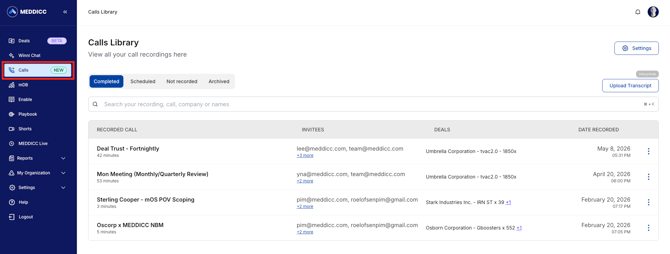
All recordings are stored in the Calls Library, accessible from Calls in the left-hand navigation. From here you can:
- Switch between Recorded, Upcoming, and Archived views
- Search recordings by name, company, or participant
- Upload transcripts manually (for calls recorded outside mOS)
Each recording row shows the call name, invitees, and date recorded. Select any recording to open the full call record with all four tabs.
Sharing a Call
You can share any recording with colleagues in your organization who have a MEDDICC license. Shared calls give colleagues full access to the recording, transcript, MEDDPICC elements, summary, and action items.
How to share
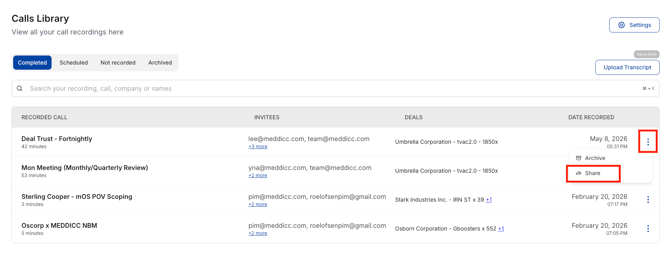
- Open the Calls Library and find the recording you want to share.
- Select the three-dot menu (⋮) on the right of the recording row, or from inside the call record.
- Select Share from the menu.
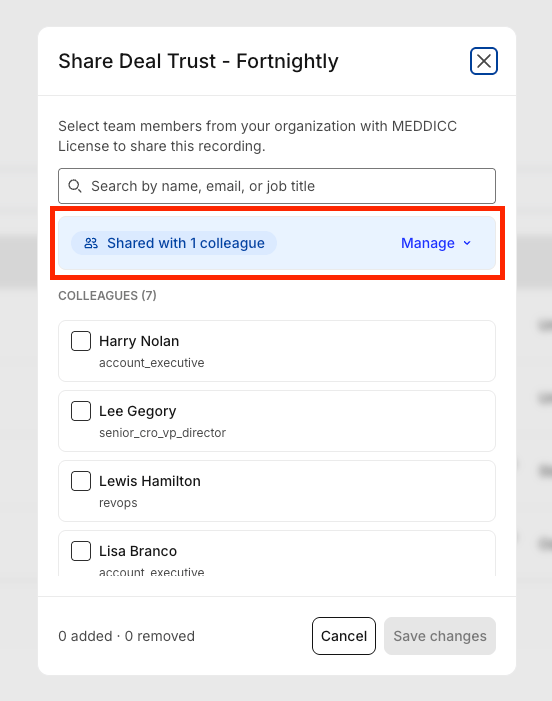
- The Share [Call Name] modal opens, showing a list of all colleagues with a MEDDICC license.
- Search by name, email, or job title to find the people you want to share with.
- Tick the checkbox next to each colleague. Selected colleagues show a 'Will share' badge.
- The counter at the bottom tracks how many you've added.
- Select Save changes. The recording is immediately accessible to the selected colleagues.
💡 Only colleagues with an active MEDDICC license appear in the share list. If someone is missing, they may not have a license assigned, contact your admin.
Updating access
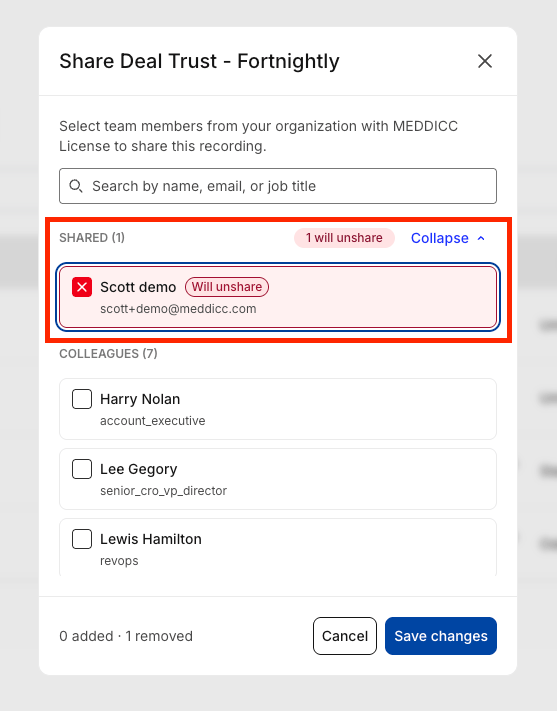
To add or remove access to a recording after it's been shared, open the same Share modal. You will see the Shared with [X] colleague, click Manage. You will see all users the call have been shared to. Tick or untick as needed and select Save changes. The counter shows 'X added · Y removed' before you confirm.
What shared colleagues can do
- View the full recording, transcript, MEDDPICC elements, call summary, and action items.
- Copy extracted insights into any external platform or CRM.
Data & Privacy
- Recordings cannot be permanently deleted by users but can be archived from the Calls Library.
- There is no storage limit on recordings.
- Calls is powered by Google Cloud (Gemini) for transcription and MEDDPICC extraction.
- Customer data is never used to train AI models or shared with third parties.
Related Articles
- Troubleshooting & FAQ - Calls
- Calls Security & Compliance
- Deals x Calls Integration