![meddicc-logo.svg]](https://meddicc.com/hubfs/website/images/vectors/meddicc-logo.svg)
Organize your users into teams and regions to enable clearer reporting, tracking, and performance insights.
If you're working with teams across the globe or in a large team and you need to set up multiple teams, here's how.
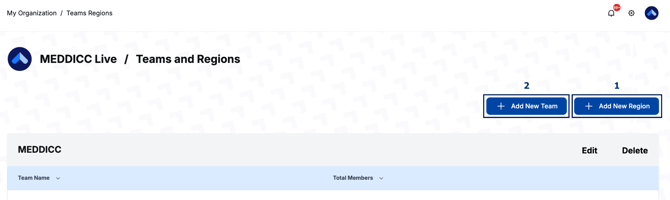
1. Go to My Organization and select Teams/Regions.
2. Click on Add New Region to create your region.
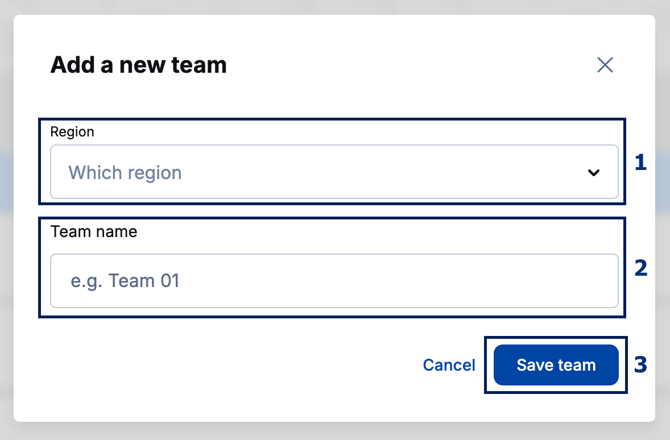
3. Next, click Add New Team. Use the drop-down menu to select your region and name your team.
4. Click Save team.
Assigning Teams/Regions
There are two ways to assign users to Teams/Regions:
1. Individually
2. In bulk
How to Add Individual Users to Teams/Regions
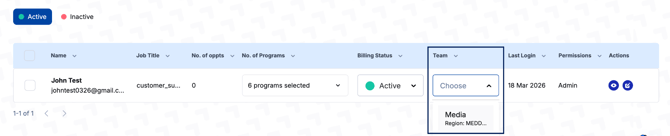
1. Go to My Organization > Organization Members.2. Locate the user, then use the Team dropdown to assign them to the appropriate team/region.
How to Add Users to Teams/Regions in Bulk
1. Go to My Organization > Organization members.2. Select the users by checking the box next to their names, or use the checkbox at the top to select all users on the page.
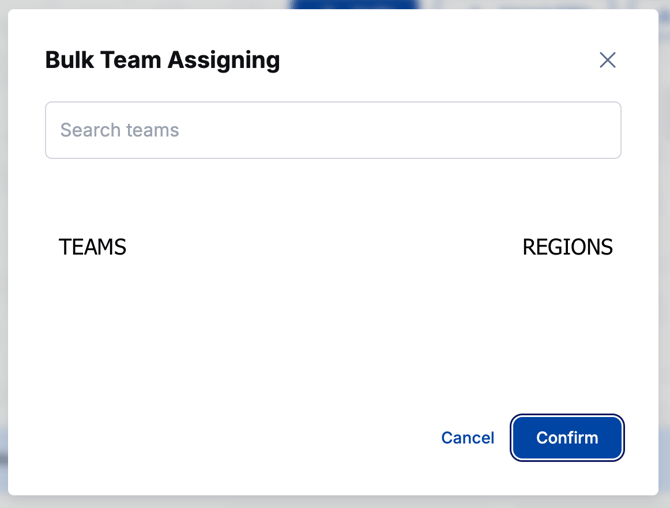
3. Once selected, click Bulk Team Assign at the top of the page.
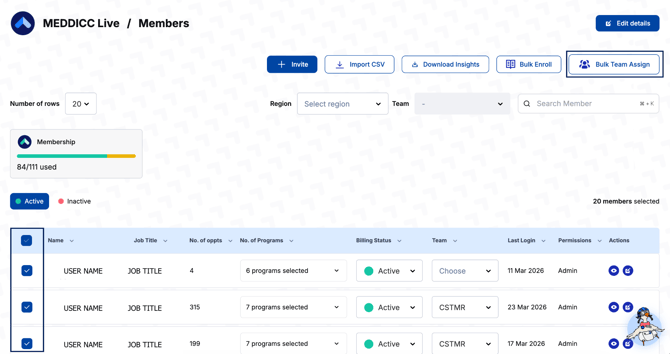
4. A pop-up will appear. Choose the team to assign, and click Confirm.
💡Quick Tip: To display more students on the page and bulk-team assign faster, simply use the Number of Rows option at the top-left of the page. You can select up to 160!
 |
|
 |