![meddicc-logo.svg]](https://meddicc.com/hubfs/website/images/vectors/meddicc-logo.svg)
Learn how to track team performance and generate reports to gain visibility into progress, completion rates, and overall engagement.
Note: only learners with Admin or Manager permission can access Reporting on mOS Enable. To find out how to change someone's permission, click here.
Tracking progression is a brilliant indicator to see how people are engaging with the programs. This visibility allows leaders to reinforce key concepts and ensure consistent execution across the team.
To view user progress, go to Reports in the navigation menu and select Enable.
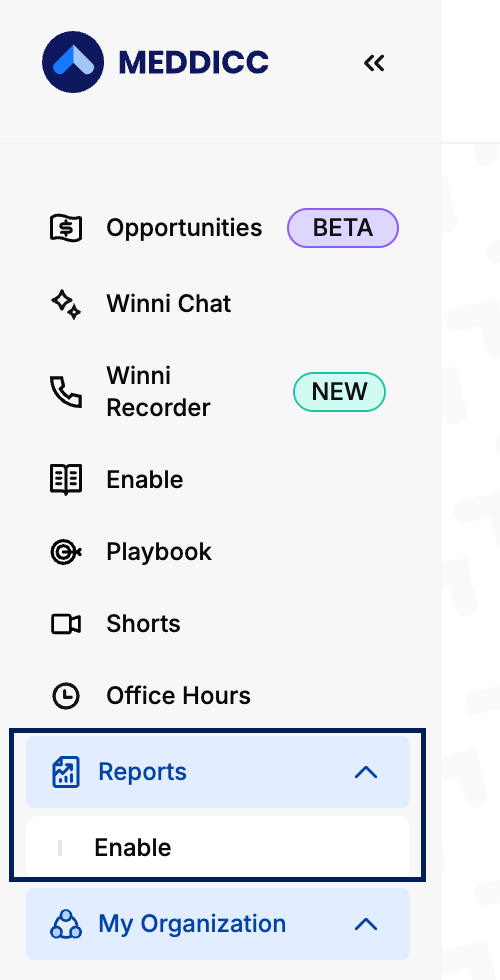
Consulting Progress On-Screen
To view progress for specific programs, regions, or teams, go to Reports > Enable from the left-hand sidebar.
From the Reports page, you can access:
- An Overview of team progress per program (displayed at the top of the screen).
- An expanded view by clicking Expand.
- Filtered views using the Filter option (by Program, Region, or Team).
- Export a Progress Report.
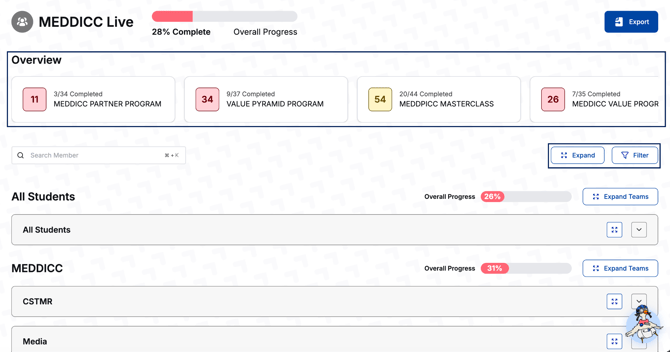
Expand and Filter Buttons
1. Expand - View all user progress across programs, teams, and regions
2. Expand Teams - View progress at the team level
3. Filter - Refine your view by Program, Region, or Team
Exporting a Progress Report
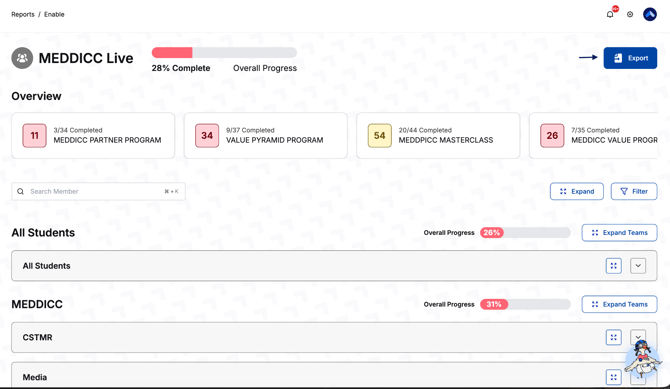
To export a general progress report including all team members, select Reports > Enable on the left-hand side bar.
Then, click on the blue Export button at the top of the screen.
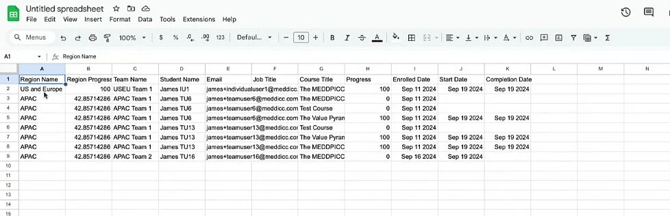
This will download a CSV file to your computer with the following information:
- Region Name: the name of the region the student belongs to. To find out how to create Regions, click here.
- Region Progress: the overall progress of the region the student belongs to.
- Team Name: the name of the team the student belongs to.
- Student Name: the full name of the student.
- Email: the email address of the student.
- Job Title: the job title of the student.
- Course Title: the name of the course taken by the student.
- Progress: the percentage of content completed by the student.
- Enrolled Date: the date when the student got enrolled in the relevant course.
- Start Date: the date the student started the course.
- Completion Date: the date the student completed the course.
Sample CSV Report
 |
|
 |
 |