![meddicc-logo.svg]](https://meddicc.com/hubfs/website/images/vectors/meddicc-logo.svg)
Understand who can do what. This guide breaks down roles and permissions so you can confidently assign the right level of access across your team.
Assigning permissions to Organization members in mOS offers security and control, letting you decide who can access and manage important data and features. This article will walk you through what permissions are available and how to assign them.
✋ Before you start: please note that the ability to assign permissions in the mOS requires an Admin role.
Types of Permissions
There are three types of permissions within the mOS:
- Admin: Full administrative users with complete control over the organization's Enable instance.
- Manager: Regular team users with reporting access but no administrative privileges.
- User: Basic users with minimal permissions for personal use only.
When inviting members to mOS, you'll be prompted to choose the permissions you'd like to assign to each individual.
Permissions Access
Organization & Admin Capabilities
|
Permission / Action |
Admin |
Team Member (Manager) |
Individual User |
|
Access "My Organization" section |
Y |
N |
N |
|
Invite new members |
Y |
N |
N |
|
Manage users (edit/remove) |
Y |
N |
N |
|
Import users via CSV |
Y |
N |
N |
|
Manage Teams & Regions |
Y |
N |
N |
|
Access Member Reflections |
Y |
N |
N |
|
Edit organization profile/settings |
Y |
N |
N |
|
Perform administrative actions |
Y |
N |
N |
Programs & Reporting Access
|
Capability |
Admin |
Team Member (Manager) |
Individual User |
|
Access Enable programs (own) |
Y |
Y |
Y |
|
Complete program modules |
Y |
Y |
Y |
|
Track personal progress |
Y |
Y |
Y |
|
View own program content |
Y |
Y |
Y |
|
Access Reports page |
Y |
Y |
N |
|
View organization-wide data |
Y |
Y |
N |
|
View team/regional performance |
Y |
Y |
N |
|
View individual user data (name, email, progress, etc.) |
Y |
Y |
N |
Programs & Reporting Access
|
Capability |
Admin |
Team Member (Manager) |
Individual User |
|
Enroll/unenroll users in programs |
Y |
N |
N |
|
Perform bulk operations (CSV, bulk enrollments) |
Y |
N |
N |
|
Manage other users’ access |
Y |
N |
N |
Assigning Permissions
There are two ways to assign permissions as an admin:
1. When sending an mOS invite
2. To an active user
Assigning permissions when sending an mOS invite
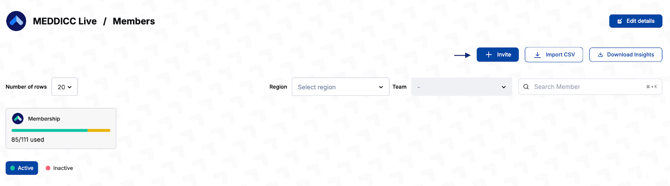
1. Go to My Organization → Organization members, then click + Invite on the top right of the page.
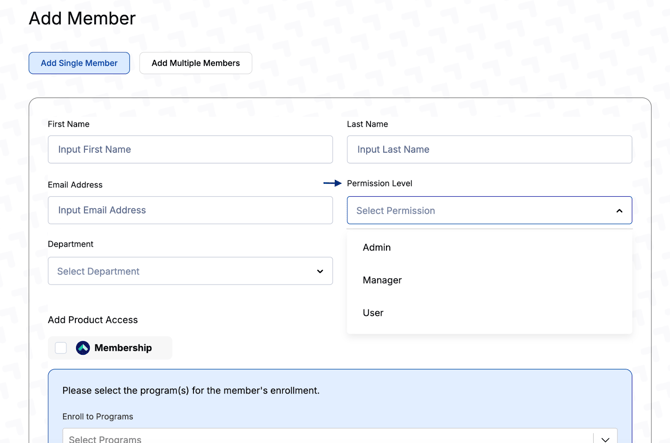
Once the invite is sent and the account setup is complete, the user will have access based on the assigned permission level.
Assigning permissions to an active user
1. Locate the user, then click the Edit button on the far right.

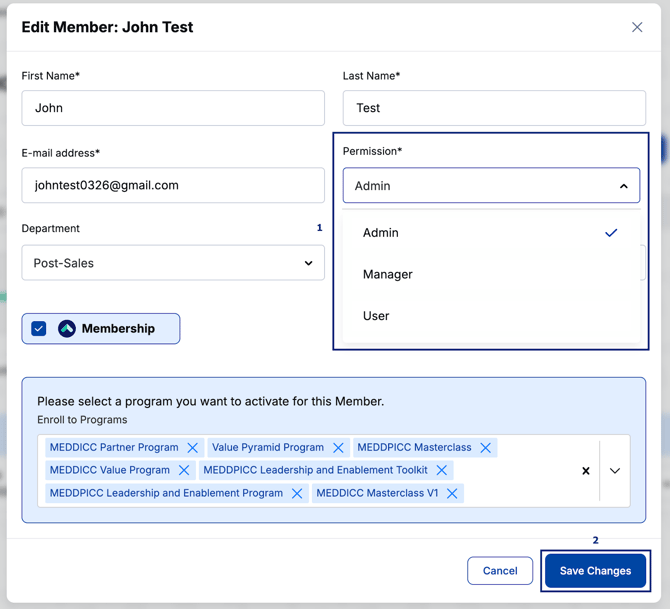
 |
|
 |
 |