![meddicc-logo.svg]](https://meddicc.com/hubfs/website/images/vectors/meddicc-logo.svg)
This article walks through the core Deals experience, creating and managing deal records, working with MEDDPICC notes, and keeping your pipeline current.
Navigating to Deals
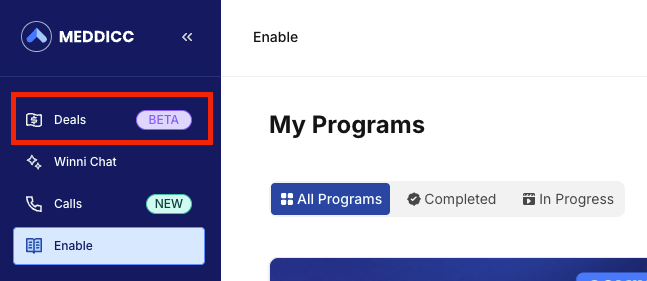
Once logged in to the MEDDICC platform, select Deals from the left navigation. Your pipeline view loads by default, showing all active deals assigned to you.
Creating a deal
- Select + New Deal from the top right of the pipeline view.
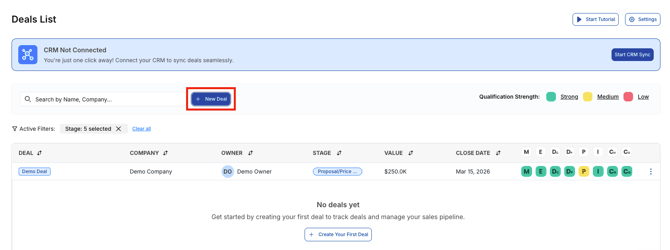
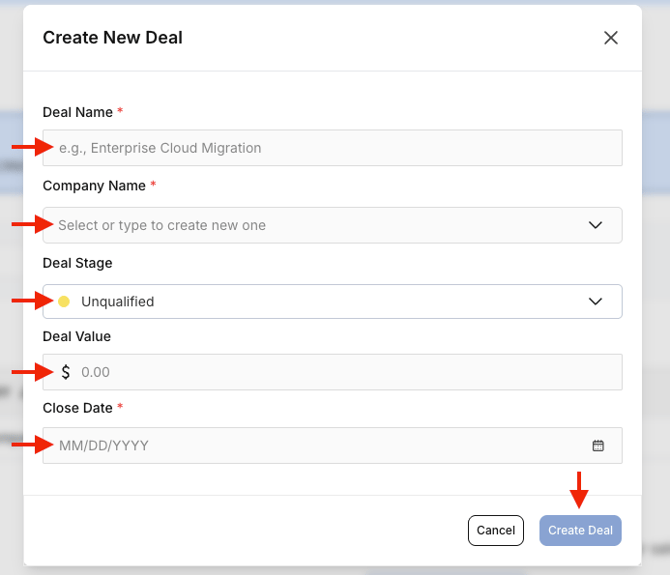
- Enter the deal name, company, and expected close date.
- Assign a deal stage.
- Select Create to open the deal record.
Tip: Name your deals the same way they appear in your CRM. If you create deals before connecting your CRM, those deals get replaced once you connect and opportunities import.
The deal record
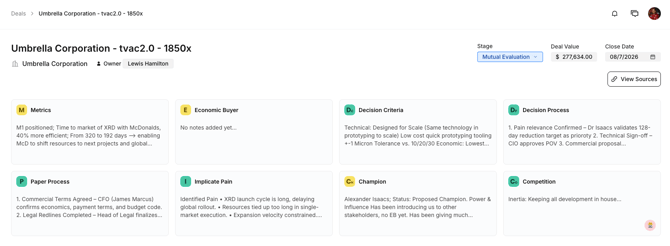
Each deal record is organized into the following sections:
Deal summary High-level details: company name, deal stage, close date, deal owner, and linked contacts.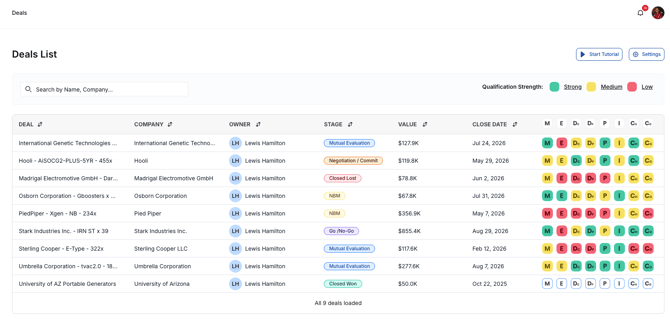
MEDDPICC notes The core of the deal record. Each MEDDPICC element has its own note field:
- M - Metrics: quantified business impact the customer is trying to achieve
- E - Economic Buyer: who has final authority over the purchase decision
- Dc - Decision Criteria: formal and informal criteria used to evaluate options
- Dp - Decision Process: the steps and stakeholders involved in making the decision
- P - Paper Process: legal, procurement, and sign-off requirements
- I - Implicate Pain: the specific business problem driving urgency
- Ch - Champion: internal advocates who will actively sell on your behalf
- Co - Competition: who else is being evaluated and how you are positioned
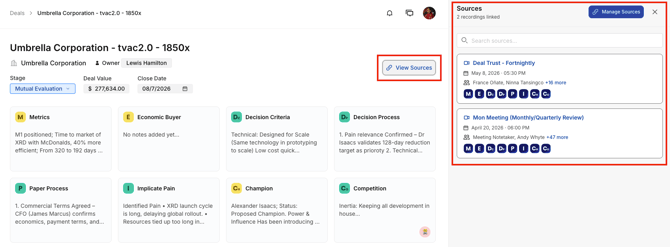
Linked Sources - Calls recorded in the Calls product that have been linked to this deal. See Deals x Calls Integration for full details.
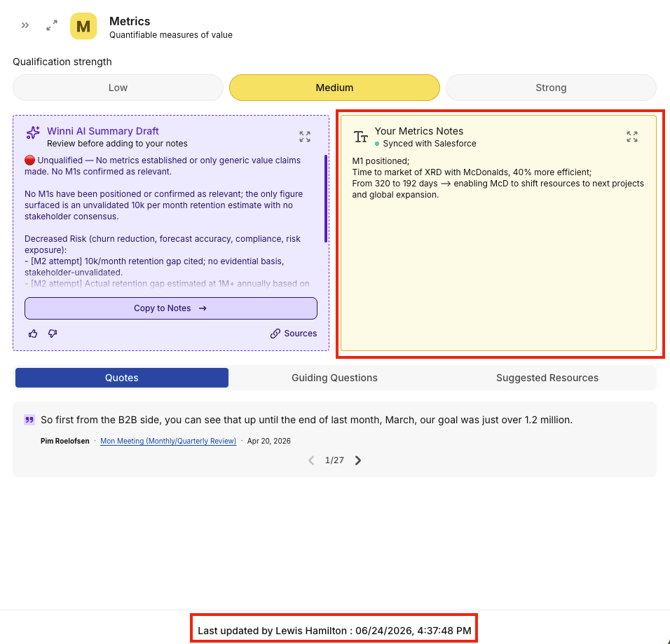
Last updated - A timestamped history of updates to the deal record.
Updating MEDDPICC notes
Select any MEDDPICC element field to edit it directly. Changes are saved automatically. If CRM sync is enabled, updates propagate to your CRM within a few minutes.
There is no required order. Update the elements you have clarity on - the record shows which elements are populated and which are blank, making gaps visible at a glance.
Managing deal stage
Use the stage selector at the top of the deal record to move a deal forward or backward. Stage changes are logged in the Last updated history with a timestamp and the user who made the change.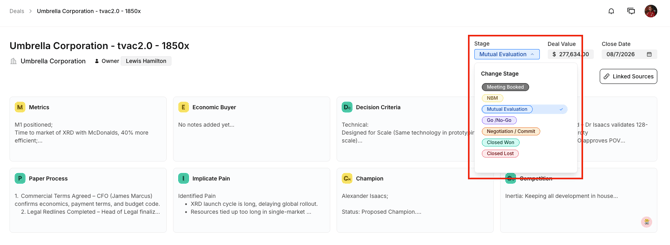 Filtering and sorting your pipeline
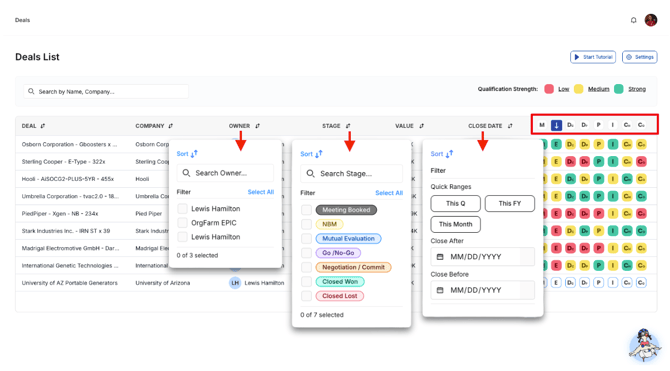
From the pipeline view, use the filter bar to narrow deals by:
- Deal stage
- Close date
- Deal owner (managers only)
- MEDDPICC coverage (e.g., deals missing an Economic Buyer)
You can sort your deals by any field in the table to quickly find and prioritize the opportunities that matter most.
Related articles