![meddicc-logo.svg]](https://meddicc.com/hubfs/website/images/vectors/meddicc-logo.svg)
Learn how to assign programs to individual users or groups, ensuring the right people are enrolled and set up to start their learning journey.
As an admin, you can enroll yourself and users in your organization in the programs you want the team to complete.
Note: We recommend starting with the MEDDPICC Masterclass, as it builds the foundation needed before progressing to other programs.
There are three ways to enroll a user to programs:
1. When sending an mOS Invite (click here for the detailed steps)
2. Per Active User
3. In Bulk
Enrollment per User
1. Go to My Organization > Organization members.2. Locate the user you’d like to enroll, click the No. of Programs dropdown, and select the program(s) to assign.
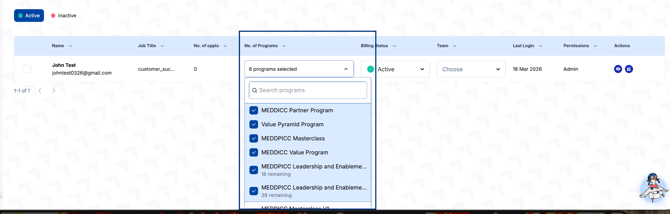
3. The user will receive a confirmation email once successfully enrolled.
Enrollment in Bulk
1. Go to My Organization > Organization members.2. Locate the users you’d like to enroll and select the checkbox next to their names, or use the checkbox at the top of the list to select all users on the page.
3. Once selected, click Bulk Enroll at the top of the page.
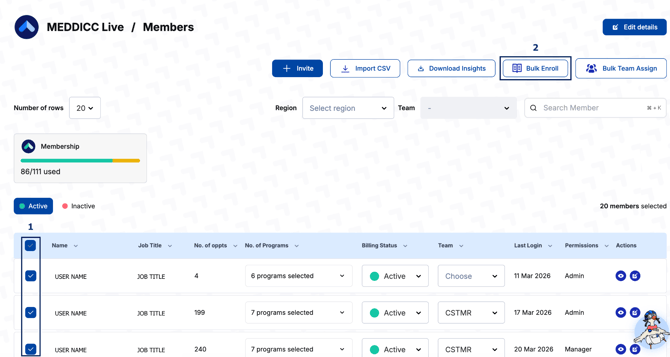
4. A pop-up will appear, choose the program(s) to assign and click Confirm.
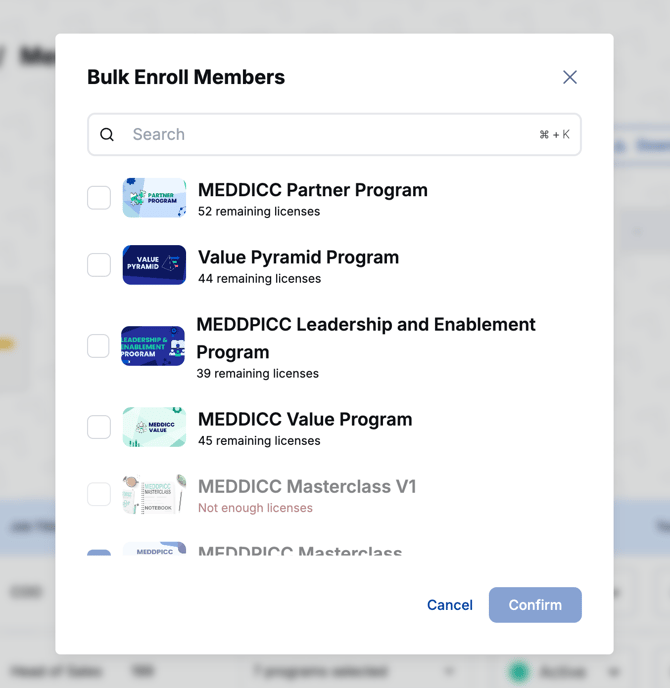
💡Quick Tip: To display more students on the page and bulk-enroll faster, simply use the Number of Rows option at the top-left of the page. You can select up to 160!
Unassigning Programs
Admins can unassign programs the same way they assign them. Simply select the user and untick the program(s) to remove access.
If you’re deactivating a user and plan to reassign the license, refer to How to Deactivate Users for detailed steps.
Note: All licenses grant access to available programs. Programs can only be assigned if a license is also assigned to the user. If no licenses are available, programs will not be accessible.
 |
|
 |
 |