![meddicc-logo.svg]](https://meddicc.com/hubfs/website/images/vectors/meddicc-logo.svg)
Follow these steps to deactivate users, revoke access, and manage license availability effectively.
Just as Admins can add users, they can also deactivate them. To do this, simply click on the Billing Status dropdown and select Deactivate for the chosen user.

Note: If the users usage is below 10%, we recommend removing the Membership seat to free the license. This will allow the license to be reassigned to another user when needed.
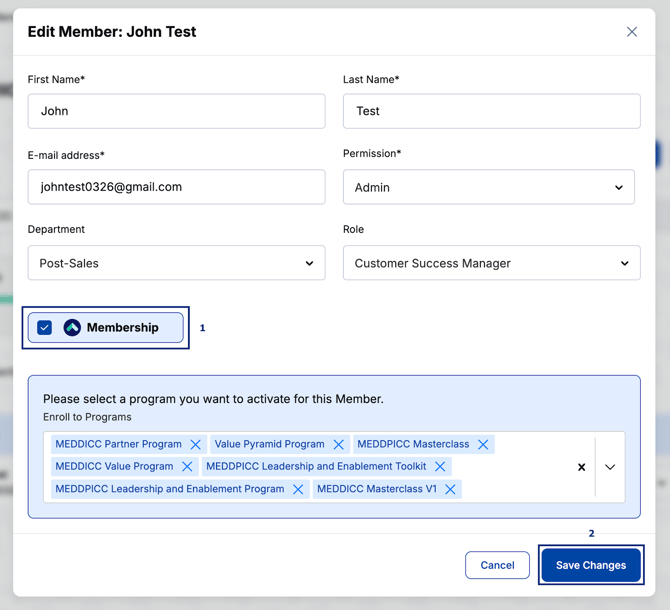
How to Remove Membership
1. Locate the user, then click the Edit button on the far right.
You can then easily identify Active and Inactive users on the top part of the screen.

Admins can only unassign programs and free up a license if progress is below 10%. As outlined in our Terms and Conditions (Section 2. Services, Subsection 2.3. Licence Reallocation Restrictions), licenses exceeding this threshold are considered used.
Note: If the account admin doesn't need access to programs, you can remove their seat so it can be reallocated to another team member! But if the account admin needs access to reporting, they need a Membership seat.
 |
|
 |
 |